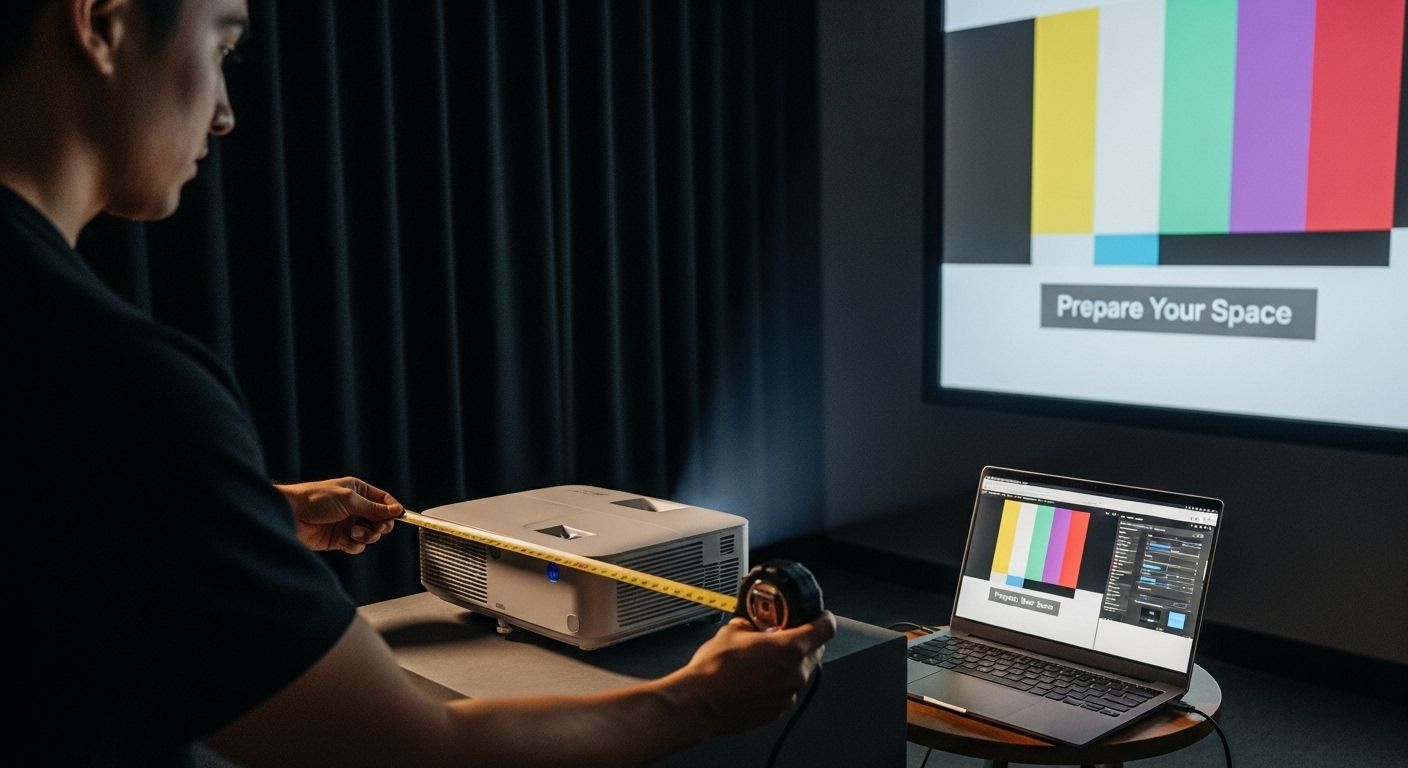
Colors decide how real the image feels. Poor calibration makes movies look flat, skin tones look odd, and slides lose impact. Many people in the US buy a good projector but never adjust the color settings. That’s like buying a piano and never tuning it. If you own a Boss Projector, calibration is simpler than most people expect.
This guide explains how to calibrate projector colors step by step, why each setting matters, and how Boss S7, S8A, and S5A make the process easier.
Why color calibration matters more than resolution
Resolution grabs attention. Color keeps attention.
A 4K image with poor color looks worse than a well-calibrated Full HD image. Incorrect color temperature causes yellow or blue tint. Bad contrast hides detail. Over-saturated colors strain the eyes.
Calibration fixes these issues. It brings balance. It makes content look natural and readable.
What calibration actually does
Calibration aligns the projector’s output with standard color targets.
This includes:
- White balance so whites look neutral
- Contrast so details stay visible
- Brightness so blacks stay black
- Color saturation so colors don’t bleed
Most projectors ship with factory settings that suit showrooms, not homes or offices. Calibration adapts the image to your room.
Start with the right environment
Before touching settings, control the room.
- Dim the lights as much as possible
- Close curtains or blinds
- Use the screen or wall you’ll normally use
- Place the projector where it will stay
Calibration depends on lighting. Changing the room later changes the result.
Use built-in presets first
Boss Projectors include picture presets.
These presets act as a starting point. Look for modes like Cinema, Standard, or Presentation. Avoid Dynamic modes for calibration. They exaggerate brightness and color.
Choose the preset closest to your use. Movies prefer cinema-style presets. Business slides prefer standard or presentation.
Adjust brightness correctly
Brightness controls black levels.
Set brightness too high and blacks look gray. Too low and dark details disappear.
How to adjust:
- Display a dark scene or a grayscale test image
- Lower brightness until blacks deepen
- Slowly raise it until shadow detail just appears
This step sets the foundation for all other adjustments.
Set contrast for clean whites
Contrast controls white levels.
Too high and highlights clip. Too low and the image looks dull.
How to adjust:
- Display a bright scene with white areas
- Increase contrast until whites look strong
- Stop before details disappear
You want whites to stay bright without losing texture.
Color temperature matters more than saturation
Color temperature affects the entire image tone.
Most projectors default to Cool. That adds blue tint. For natural viewing, aim for Warm or Neutral.
Boss projectors allow manual temperature selection. Choose the warmest option that still looks clean. Skin tones should look realistic, not orange or pale.
Fine-tune color saturation
Saturation controls color intensity.
Too much saturation causes color bleeding. Too little looks lifeless.
Use a scene with natural colors like faces or landscapes. Increase saturation until colors feel rich, then step back slightly.
This keeps the image balanced.
Tint and hue adjustments
Tint affects red and green balance.
Many users skip this. That’s fine unless colors look off. If faces look green or purple, small tint adjustments help.
Make small changes. One or two steps matter more than big jumps.
Sharpness should stay conservative
Sharpness doesn’t add detail. It adds edge outlines.
Too much sharpness causes halos around objects. Reduce sharpness until outlines disappear. Let the resolution do the work.
Boss S7 and S8A handle detail well. They don’t need heavy sharpening.
Boss S7 4K Projector calibration advantages
The Boss S7 makes calibration easier because of its strong base image. High brightness, true 4K resolution, and accurate default color profiles reduce how much adjustment is needed. Its menu layout is clean and responsive.
This model suits users who want precise results for movies, gaming, or professional visuals.
Boss S8A 4K Projector and auto correction benefits
The Boss S8A reduces calibration errors through auto focus and auto keystone. A squared image makes color tuning easier because distortion is removed first. Google TV integration also allows access to calibration videos and test patterns directly.
This helps users calibrate without extra devices.
Boss S5A Smart Projector for simple setups
The Boss S5A offers straightforward calibration for everyday use. Full HD resolution, clear menus, and auto keystone make it easy for beginners. Android OS allows test pattern playback from apps.
It’s a good choice for users new to projector setup.
Use test patterns if available
Test patterns speed up calibration.
You can find free calibration videos on streaming platforms. These include grayscale ramps, color bars, and contrast tests.
Using patterns removes guesswork and improves consistency.
Recheck after a few hours of use
Projectors change slightly after warm-up.
After using the projector for a few hours, recheck brightness and contrast. Small tweaks often improve long-term consistency.
This step helps especially with new projectors.
Save multiple profiles if possible
If your projector allows it, save profiles.
One for movies. One for presentations. One for gaming.
Boss projectors support different picture modes, making it easy to switch without recalibration.
Frequently Asked Questions
How often should I calibrate my projector?
Once during setup is enough for most users. Recheck every few months or when the room lighting changes.
Do I need professional calibration tools?
No. Built-in controls and test patterns work well for home and office use.
Does calibration improve gaming visuals?
Yes. Proper brightness and contrast improve visibility in dark scenes and reduce eye strain.
Will calibration affect input lag?
No. Color calibration does not change input lag or response time.
Can I copy settings from someone else?
Settings vary by room, screen, and lighting. Use shared settings only as a reference.
Conclusion
Calibrating your projector isn’t technical or risky. It’s practical. A few adjustments can turn a decent image into one that feels natural and comfortable.
Boss Projectors make this process easier through strong default settings, clear menus, and smart features. Boss S7 offers the most control. S8A adds convenience. S5A keeps things simple.
Once calibrated, your projector finally shows what it’s capable of.