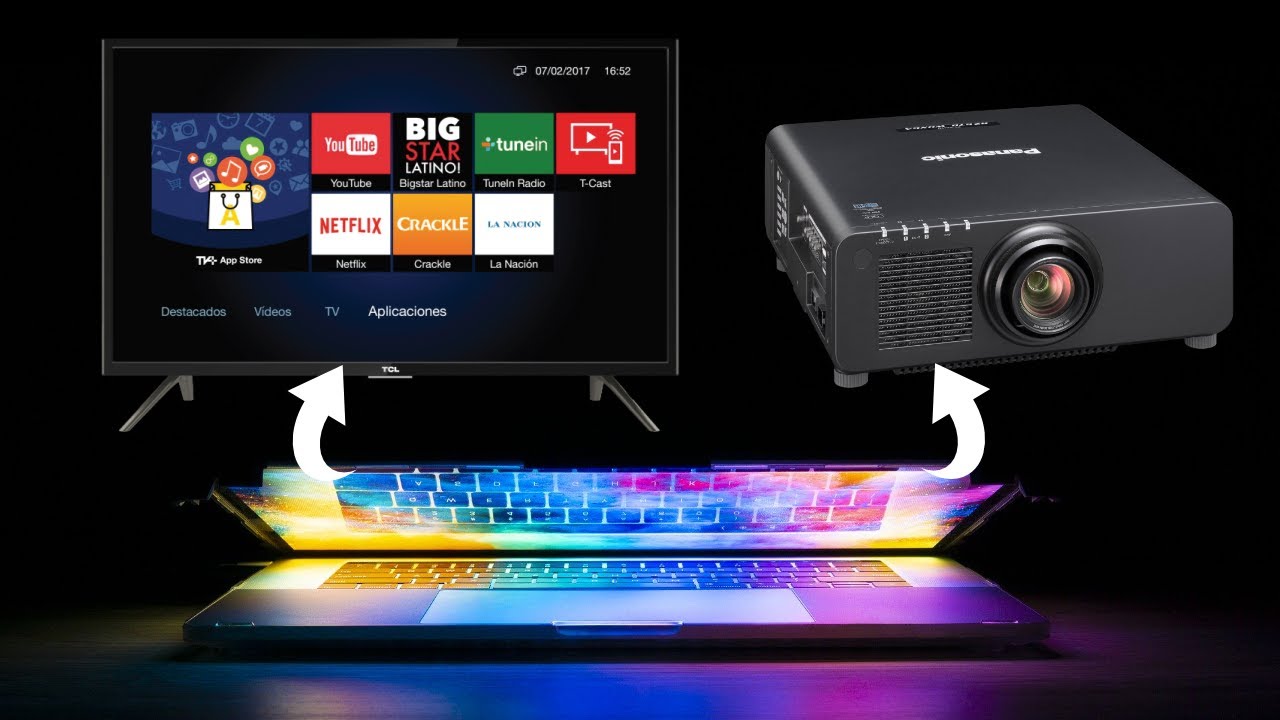
A laptop can be connected to a projector wirelessly using built-in casting tech like Miracast, AirPlay, Chromecast, or a wireless HDMI solution. Boss Projector models, led by the Boss S7, support several of these methods and make the setup fast and reliable for movies, presentations, and casual gaming.
Why Wireless Matters
Lugging cables feels old school. People want clean setups and quick starts. They want to walk in, click, and present or stream.
This is especially true for busy pros and home users who pick the Boss S7 as their go-to projector. It gives high brightness and smooth streaming, so a wireless link from laptop to big screen feels natural. The reader’s pain point is clear: they want simplicity. Their desire is also clear: a large screen that works with their laptop without fuss.
The Quick Answer
To connect a projector to a laptop wirelessly, use the laptop’s native casting feature or a compatible wireless receiver. On Windows use Miracast or a Chromecast device. On Mac use AirPlay or a Chromecast. Plug-in wireless HDMI kits offer another option. Boss S7 supports Wi-Fi casting and external receivers for flexible setups.
What Methods Work Best
There are several ways to connect. Each has pros and cons.
1. Miracast
Works mainly on Windows laptops. It mirrors the screen without extra apps. It is convenient for presentations and slides.
2. AirPlay
Works on Macs and iOS devices. It streams video to devices that accept AirPlay. It’s very simple for Apple users.
3. Chromecast and Google Cast
Requires a Chromecast dongle or a projector with Google Cast built in. It works across Windows, Mac, and ChromeOS via browser or supported apps.
4. Wireless HDMI Kits
These include a transmitter that plugs into the laptop and a receiver that plugs into the projector. They act like a long HDMI cable without the wire.
5. Proprietary Apps and Vendor Tools
Some projectors offer a dedicated app or built-in Android system for casting. Boss projectors include Android-based systems and support casting apps for smooth linking.
Why Boss S7 is the Top Choice for Wireless Laptop Connections
Boss S7 is the flagship. It has a mix of brightness, sharpness, and connectivity that fits most laptop use cases.
- High Brightness: Strong lumens let the screen stay readable in bright rooms.
- DLP Clarity and 4K Resolution: Keeps text crisp for slides and spreadsheets.
- Built-in Smart Features and Wi-Fi: Supports wireless casting options, accepts standard protocols, and works with external receivers.
- Low Input Lag for Casual Use: Performs well for video and presentations. For competitive gaming, a wired link still offers the fastest response.
- Robust Correction Tools: 4D keystone and focus let the user set the projector off-center and still get a neat screen.
- Local Support and Warranty: Buyers get support and a one-year parts and labor warranty through authorized sellers.
See the Boss S7 4K Portable Projector on Best Buy.
Step by Step Guide: Connect a Windows Laptop Wirelessly Using Miracast
Windows laptops commonly use Miracast to wirelessly mirror the display. Turn on Miracast on the projector, press Windows key P and select Connect to a wireless display, then choose the projector name.
Steps in Detail
- Check if the laptop supports Miracast. Press Windows key, type Projecting to this PC, and open the settings.
- On the Boss S7, enable screen mirroring or wireless display mode from the input menu.
- On the laptop press Windows key and P. Choose Duplicate or Second screen only if presenting.
- Click Connect to a wireless display and pick the Boss projector from the list.
- Allow pairing and enter a PIN if prompted.
- Tweak resolution or scaling in display settings for best fit.
Troubleshooting Tips
If the projector does not show up, restart both devices and ensure both are on the same network or Miracast mode.
Step by Step Guide: Connect a Mac Laptop Using AirPlay or Chromecast
Macs use AirPlay to mirror or extend the screen, or they can cast via Chrome or a Chromecast. Turn on AirPlay on the projector or plug in a Chromecast and choose the display from the Mac menu bar.
AirPlay Method
- Make sure the Mac and the Boss projector are on the same Wi-Fi network and that the projector accepts AirPlay or has a receiver.
- Click the AirPlay icon in the Mac menu bar.
- Select the projector name.
- Pick mirror or use as a separate display.
Chromecast Method
- Plug a Chromecast into the projector HDMI.
- On the Mac open Chrome, click the three dots menu, choose Cast, and select the device.
- Choose Cast desktop to stream the whole screen.
AirPlay usually gives very smooth performance for video and slides. Chromecast works well for browser content and many apps.
Using a Wireless HDMI Kit When Protocols Do Not Match
A wireless HDMI kit plugs into the laptop HDMI output and the projector HDMI input; it creates a direct wireless HDMI link that acts like a long cable without the cable.
Why Use It
It is protocol-agnostic. It works when Miracast, AirPlay, or casting apps are not available. It also keeps latency lower than many software casting methods.
How to Set It Up
- Plug the transmitter into the laptop HDMI.
- Plug the receiver into the projector HDMI.
- Power both units.
- They pair automatically or with one button press.
- Set the projector to the correct HDMI input.
Best use case: Large venues or where IT does not allow device pairing. It also works for older laptops without built-in casting.
Practical Tips for Best Wireless Performance
- Keep the projector and laptop close to the router when using Wi-Fi based casting. Use 5 GHz band if available.
- Update projector firmware and laptop OS before first use.
- Close unused apps for smoother casting.
- Use wired Ethernet for high bit rate streaming if supported.
- Pair a Bluetooth speaker for better audio; Boss S7 supports Bluetooth output.
Set-Up Checklist for a Meeting or Event
- Power on projector and laptop.
- Confirm network and software versions.
- Launch presentation and test resolution.
- Pair wirelessly and test audio.
- Walk through the presentation once.
- Have a USB-C or HDMI cable ready as backup.
Security and IT Considerations
Follow office IT rules when casting. Public networks may block device discovery. Wireless HDMI is safer for secure contexts. For sensitive data, use direct cable connections.
Common Problems and Fast Fixes
- Image lags or stutters: Reduce resolution, use 5 GHz Wi-Fi, or switch to a wired link.
- Audio out of sync: Re-pair audio device or use projector audio output; check delay settings.
- Projector not in list: Restart devices and ensure projector is discoverable; disable VPNs.
- Casting drops mid-presentation: Move devices closer to router or use wireless HDMI transmitter.
Use Cases and Real World Examples
- Classroom Teaching: Teachers mirror slides and videos wirelessly; brightness keeps text readable.
- Business Meetings: Quick connect and present from a laptop; keystone tools adjust off-center projector.
- Home Cinema: Stream movies from laptop apps; 4K and strong lumens deliver a crisp image.
- Hybrid Events: Switch between local and remote video sources; image stays consistent.
Comparing Wireless vs Wired for Laptops
- Wireless Pros: No cable clutter, flexible placement, quick switching between presenters.
- Wireless Cons: Possible input lag, variable quality depending on network.
- Wired Pros: Lowest latency, highest stability.
- Wired Cons: Cables limit placement, can get messy.
Best practice: Use wireless for slides and streaming. Use wired for competitive gaming or low latency. Boss S7 supports both modes.
Secondary Boss Models: S8A and S5A
Boss S8A
S8A offers Google TV, auto-focus, and strong Wi-Fi. It works great for users who want a TV-like smart interface and simple casting from laptops.
See Boss S8A on Best Buy
Boss S5A
S5A is the compact Full HD option. It supports Wi-Fi casting and is ideal for smaller rooms where a portable projector makes sense.
See Boss S5A on Best Buy
Frequently Asked Questions
- Can a laptop connect to a projector wirelessly without extra hardware? Yes. Many laptops and projectors support Miracast, AirPlay, or Chromecast natively. Otherwise, use a wireless HDMI kit.
- Which method gives the lowest latency? Direct wired HDMI gives the lowest latency. Wireless HDMI kits outperform software-based casting.
- Can wireless casting handle 4K video? Depends on network and device. For solid 4K streaming, use wired HDMI or high-quality wireless HDMI kits.
- Is it safe to cast over public Wi-Fi? Public Wi-Fi may be insecure or block device discovery. Prefer wired links or private networks.
- What if my laptop and projector are on different networks? They must be on the same local network or use direct wireless modes. Wireless HDMI avoids network issues.
Final Recommendations
For most laptop users who want a premium wireless experience, Boss S7 is the top pick. It blends bright, sharp 4K visuals with built-in Wi-Fi and flexible inputs. Pair it with a wireless HDMI kit if compatibility is uncertain. Keep a cable handy as backup.
If the user primarily wants streaming with a smart TV interface, S8A is a strong alternative. If they need a compact unit for small rooms, S5A fits well.