US projector buying guide
How to Connect a Phone to a Projector: HDMI, Casting and Fixes
A phone can connect to a projector when there is a supported video path between them. The connection might be HDMI through an adapter, a supported wireless casting protocol, or a separate streaming device. A USB charging cable alone does not establish that the phone can output video.

Check three things before buying an adapter: your exact phone model, the projector’s input and the app you want to display. “USB-C,” “Wi-Fi” and “Bluetooth” describe different capabilities; none of those labels guarantees that every phone screen can be shown.
Choose the connection for the content
| Method | What must match | Best reason to choose it |
|---|---|---|
| Phone → adapter → HDMI | Phone video output, adapter and projector input | A direct connection for supported photos, presentations or apps |
| Cast-enabled app → compatible receiver | The app protocol, receiver support and network | Control supported playback from the phone without mirroring everything |
| Streaming player → HDMI | Streaming service support, HDMI input, player power and internet | Run the movie app on a supported player and use its remote |
For a local photo or presentation, a supported wired path does not inherently require Wi-Fi. An online movie still needs internet wherever the app runs. For regular subscription viewing, a supported HDMI player can remove the phone and adapter from the playback chain.
Start with the phone’s documented video output
For a wired connection, the phone needs to support an external display through its connector. The adapter must support that output, and its HDMI signal must be compatible with the projector. Some USB-C ports support video; others serve charging and data only.
Apple describes supported adapters and display connections in its iPhone display connection guide. Check the instructions for your iPhone’s connector and model. A Lightning adapter and a USB-C adapter are not interchangeable.
For Android, consult the phone manufacturer’s documentation for the exact model. Video-output features vary by handset, so check your exact phone model. Check whether the manufacturer explicitly lists video output or a supported desktop/external-display mode.
A practical HDMI connection sequence
- Connect the suitable adapter to the phone and connect any power input required by the adapter.
- Run an HDMI cable from the adapter to the projector’s HDMI input.
- Turn on the projector and select the same input. If it has more than one HDMI socket, note which one you used.
- Unlock the phone and approve any display prompt.
- Try a locally available photo or a supported presentation before opening a streaming app.
That last step helps separate connection problems from app restrictions. If the photo displays correctly but a particular movie app stays black, replacing the projector may not solve the issue.
Match the wireless protocol
A projector and phone can both have Wi-Fi without speaking the same screen-casting protocol. Check whether the destination supports the protocol the phone actually uses. Avoid treating AirPlay, Google Cast and generic screen mirroring as interchangeable features.
Google’s guide to casting from supported apps describes using a compatible receiver and network connection. Look for the app’s supported casting option and verify that the receiver is compatible.
On a guest network, device-isolation settings can prevent two devices from discovering each other. If the receiver does not appear, confirm the network first and follow the device documentation. Moving closer to the router may improve signal quality but does not add a missing casting capability.
Why a movie may show a black screen
Streaming services can limit screen mirroring or require a supported protected video connection. A phone menu appearing on the projector does not prove that every subscription app will play its video through that same path.
Check the app’s official support information for external displays, casting and supported devices. Use the service’s supported playback method. A compatible HDMI streaming device may be a more straightforward option than mirroring, because the app runs on the device attached to the projector.
Do not buy an adapter based only on a claim that it bypasses app restrictions. Even a working adapter cannot guarantee continuing compatibility with every service or future app update.
Understand HDCP errors before changing hardware
HDCP is copy protection used by some video services over digital display connections. Apple explains that some movies and apps require an HDCP-compatible connection. An adapter that successfully displays the home screen can still fail that requirement.
If only one service fails, check that service's supported-device guidance first. Netflix's projector help page describes connecting a supported external device when the projector's built-in app is unsupported. This is a supported playback alternative, not a method for defeating copy protection. It does not certify any particular BOSS Projectors model or phone adapter.
Bluetooth is usually an audio question
When a projector advertises Bluetooth, determine what that feature does. It may pair with a speaker, headphones or another supported accessory. For phone video, use a supported casting connection or a compatible HDMI adapter.
Check sound after the picture is working. The phone, app or projector may route audio to a different output than expected. Disconnect an unintended paired speaker and verify the selected audio output. If dialogue is visibly delayed, compare the supported wired and wireless options rather than increasing the volume.
Troubleshoot one part at a time
| What you see | First check |
|---|---|
| No signal at all | Selected HDMI input, phone video-output support, adapter power and cable connections |
| Phone photos work; a movie does not | The app’s supported external-display or casting method |
| Wireless receiver is missing | Compatible protocol, receiver power and network/device-isolation settings |
| Picture works but sound is missing | Phone and projector audio output, mute settings and paired devices |
| Connection drops outdoors | Wi-Fi coverage at the actual viewing location and power stability |
Try a known-working HDMI source on the projector if possible. If that source works, focus the next checks on the phone and adapter. Change one cable or setting at a time so you can identify which change helped.
Choose the projector and source together
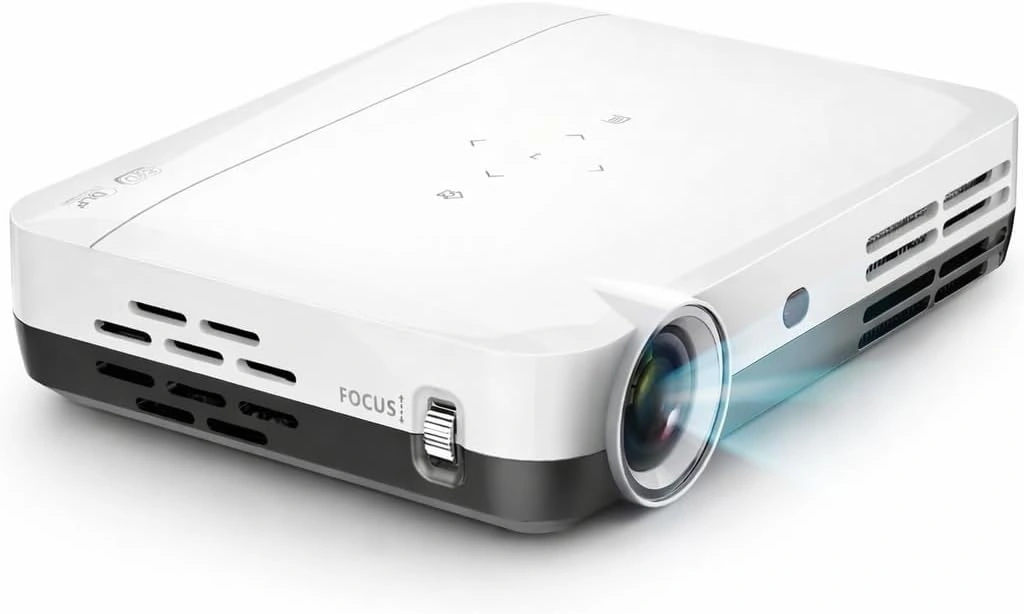
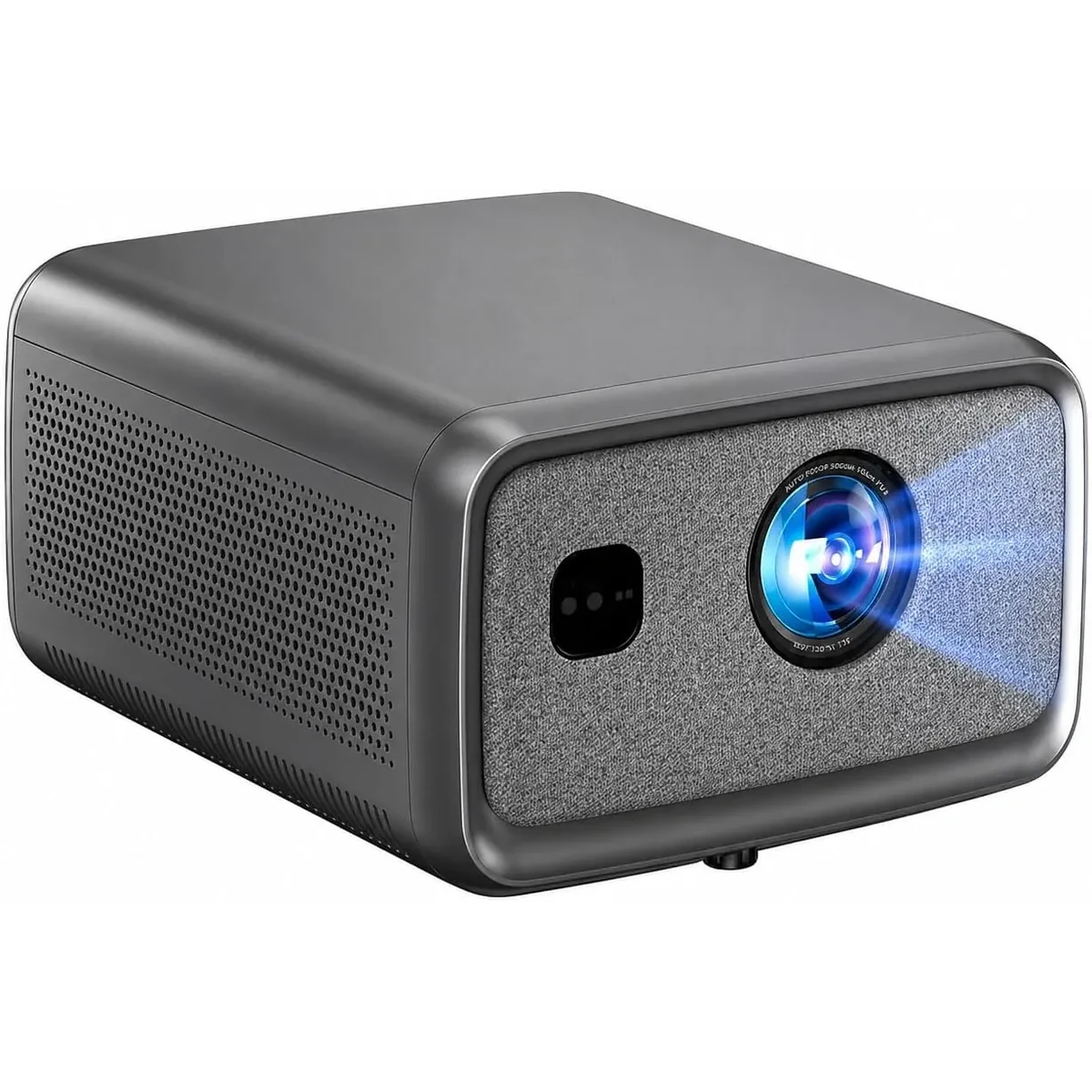
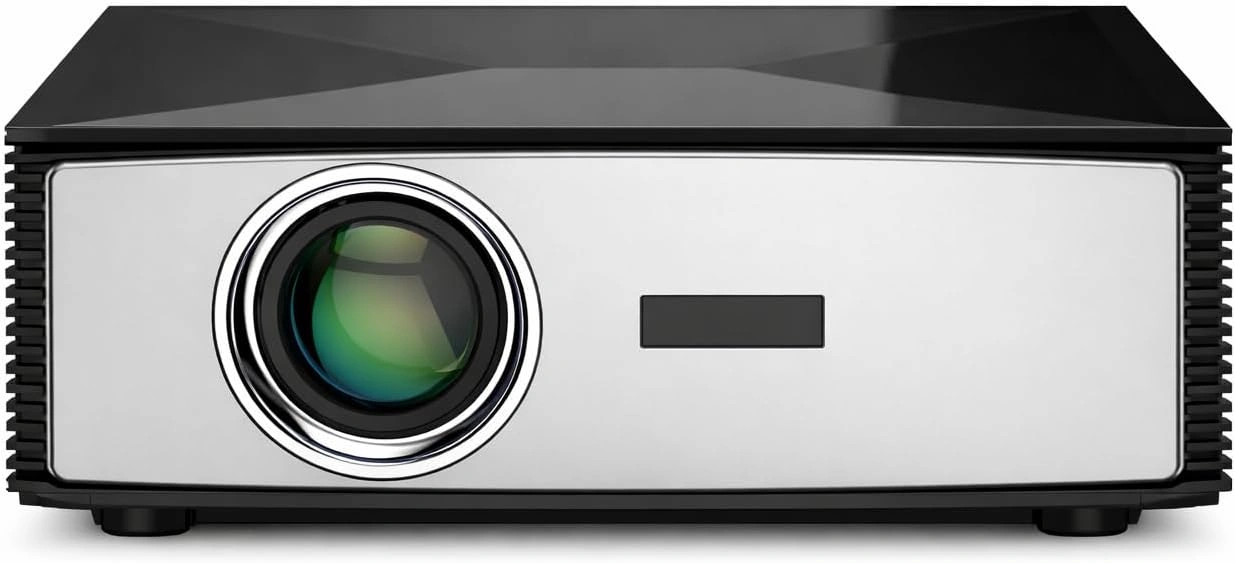
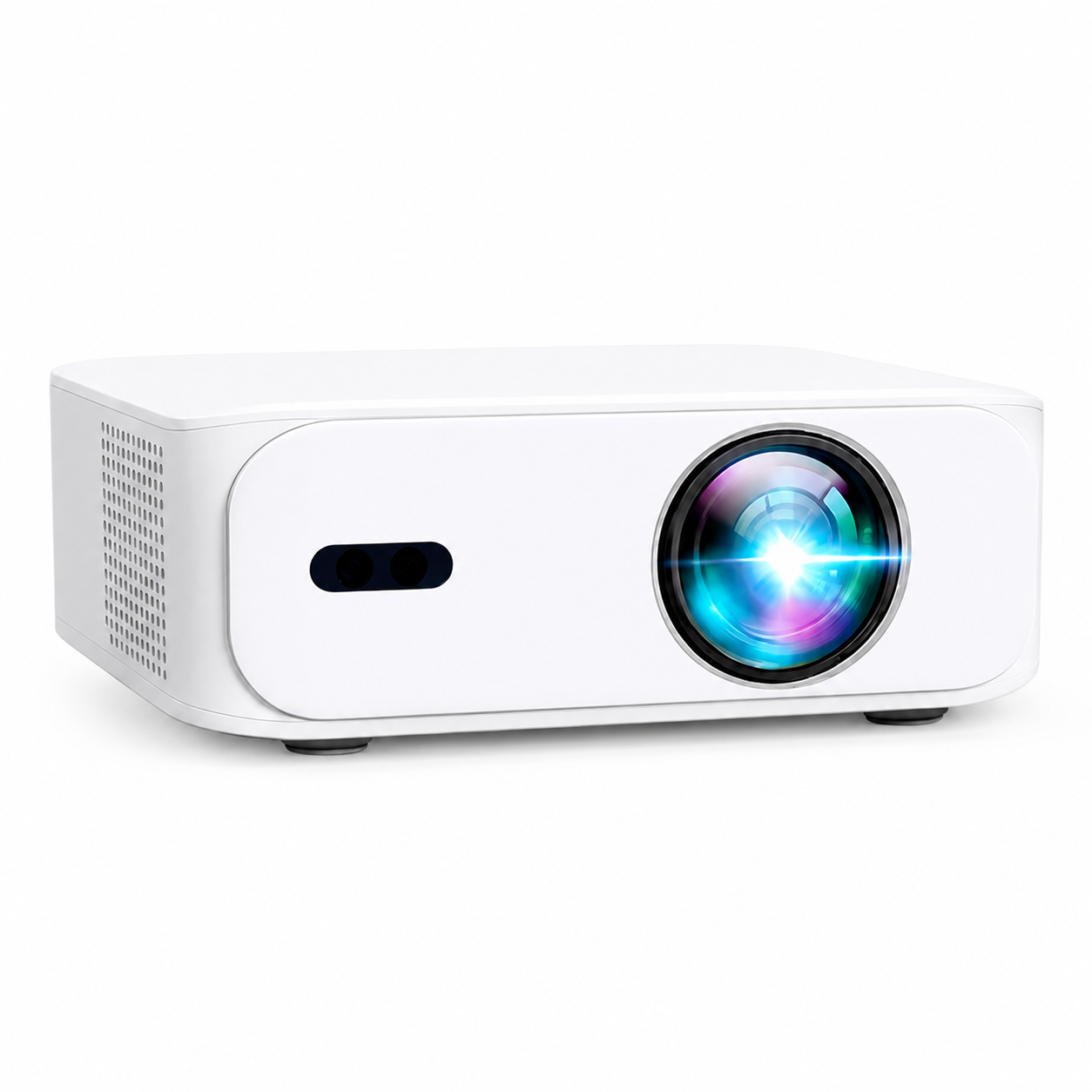
All four current BOSS projector pages describe their input and smart features. Compare the exact model rather than relying on a generic smart-projector label. The S7’s 4K UHD output and the S8A’s compatible 4K input describe different things; neither tells you that an unsupported phone adapter will work.
If most of your viewing is a subscription service, check its supported streaming devices before buying. If you mainly show presentations or your own media, confirm your phone’s external-display support and test the files you intend to use. For outdoor viewing, rehearse the full source arrangement in the yard.
Compare US projector models or send our team your phone model, projector model and the app or content you want to display. Include the adapter name if you already have one. Those details let support give a specific answer without guessing.
Current models and prices
Explore the current models
Review the key specifications and current prices. Open a model for the full details.