US projector buying guide
Projector Has HDMI Picture but No Dialogue? Check Your Audio Route
If your projector shows HDMI video but has no sound, first check where the source is sending audio. If music and effects play but dialogue is missing, test an appropriate stereo output and a different audio track before changing cables or speakers. A picture confirms the video path is working; it does not confirm the complete audio configuration.

This guide is for a practical home setup: an HDMI player or laptop connected to a projector, using either its speakers or a separate sound system. The aim is to establish one known working path, then add your preferred equipment back. It does not assume that every BOSS Projectors model supports the same surround formats or connection features.
Identify which kind of silence you have
| Symptom | First check | What the result tells you |
|---|---|---|
| No sound anywhere | Mute, volume and selected output on source and destination | Whether audio is being sent to the intended speakers |
| Effects or music, but faint or missing voices | A supported stereo output or stereo track | Whether format or channel handling changes the result |
| Only one streaming app is silent | Another title and available audio track in that app | Whether the symptom follows the app or program |
| Projector speakers work; external sound does not | External speaker input, cable path and supported output | Which part of the external route needs attention |
| Sound plays from a laptop or paired headset | The source’s output-device selection | Whether HDMI was selected for video only |
1. Write down the audio route
Use one short line: player → HDMI → projector speakers, or player → receiver → projector, with receiver speakers. If you use a soundbar, identify the exact port carrying sound to it. A drawing helps distinguish the display receiving the picture from the device expected to reproduce the dialogue.
HDMI input does not by itself establish HDMI ARC or eARC support. Those features must be documented for the relevant ports and devices. Before rearranging a soundbar connection, compare the projector and soundbar manuals. Do not assume that connecting any two HDMI ports will send audio in the direction you need.
For a laptop, inspect the operating system’s current audio output after connecting HDMI. A previously paired Bluetooth device or the laptop’s own speakers may remain selected. For an external player, check its audio destination separately from its video resolution. Turn volume down before changing outputs, then raise it gradually.
2. Establish a direct HDMI baseline
- Note the current connections and settings, including the sound device you intend to use.
- Follow the equipment instructions for disconnecting and reconnecting it.
- For a supported simple setup, connect the source directly to the projector and select its HDMI input.
- Select the intended speaker output, clear mute and test at a moderate volume.
- Replay the same short scene with clear spoken dialogue.
If this direct route works, restore an intermediate receiver, switch or adapter one at a time. That comparison narrows the configuration to investigate; it does not automatically mean an intermediate device is defective. Apple’s HDMI troubleshooting guidance similarly uses a direct connection when checking a path that includes a receiver or switch.
3. Test stereo PCM when appropriate
A surround soundtrack has to be decoded and routed by equipment that supports it. In a simple two-speaker setup, a supported stereo PCM output is a useful diagnostic baseline. It is not a promise that every silent system has a format mismatch, and it is not a reason to permanently replace a correctly configured surround setup.
For Apple TV, Apple documents the path through Settings, Video and Audio, Audio Format and Change Format, then Stereo. Apple describes this stereo option as uncompressed two-channel PCM. Other players use different names and menu paths; check the instructions for your exact device.
Replay the same dialogue scene. If voices return, note the original format, the working stereo setting and the connected devices. Keep the working baseline while you confirm the supported surround path with the relevant manuals. If nothing changes, return to the output selection and continue the app comparison rather than repeatedly cycling formats.
4. Compare the title and its audio track
Try a second title in the same app, then a second app on the same source. Where a title offers both surround and non-surround versions of a language track, compare them. Keep the language consistent so you do not confuse a different track with a change elsewhere in the system.
Netflix’s video-without-sound help includes device-specific audio checks and, on supported devices, switching from a selected 5.1 option to a non-5.1 track. Use the instructions for the device actually playing Netflix; an HDMI player and a built-in app are separate playback systems.
Track availability varies by title, device and region, including the United States. If only one title fails while others work through the same route, record the title and track before changing system-wide settings. If every app on one player is silent, the common output or connection path is the more useful next comparison.
5. Restore your preferred sound system
Once the basic route works, reconnect the speaker system using a documented output. Match the speaker’s selected input to the physical cable. If using Bluetooth, verify which device is paired and check sound against visible speech; a working connection and comfortable lip sync are separate checks.
Change one component or setting at a time. Keep the direct route as your reference. A note such as “same scene, stereo PCM, internal speakers works; receiver path silent” is far more useful than “HDMI does not work.” It lets support focus on the particular transition that changes the result.
Send a useful support record
- Exact projector, source and sound-system model names.
- A simple connection diagram, with port labels.
- App, title, selected language track and whether other titles work.
- Original audio setting and result of the stereo comparison.
- Whether a direct HDMI connection changes the symptom.
For BOSS Projectors equipment, use our setup-support channel. A photo of the port labels can help. There is no need to open the projector or buy a replacement cable before describing the checks you have completed.
Plan picture and sound together
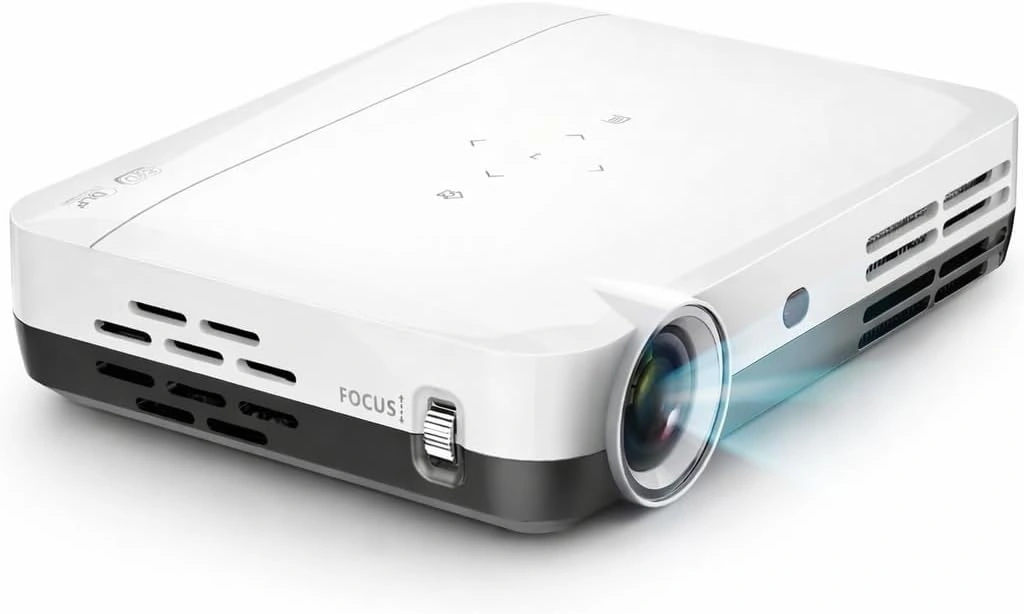
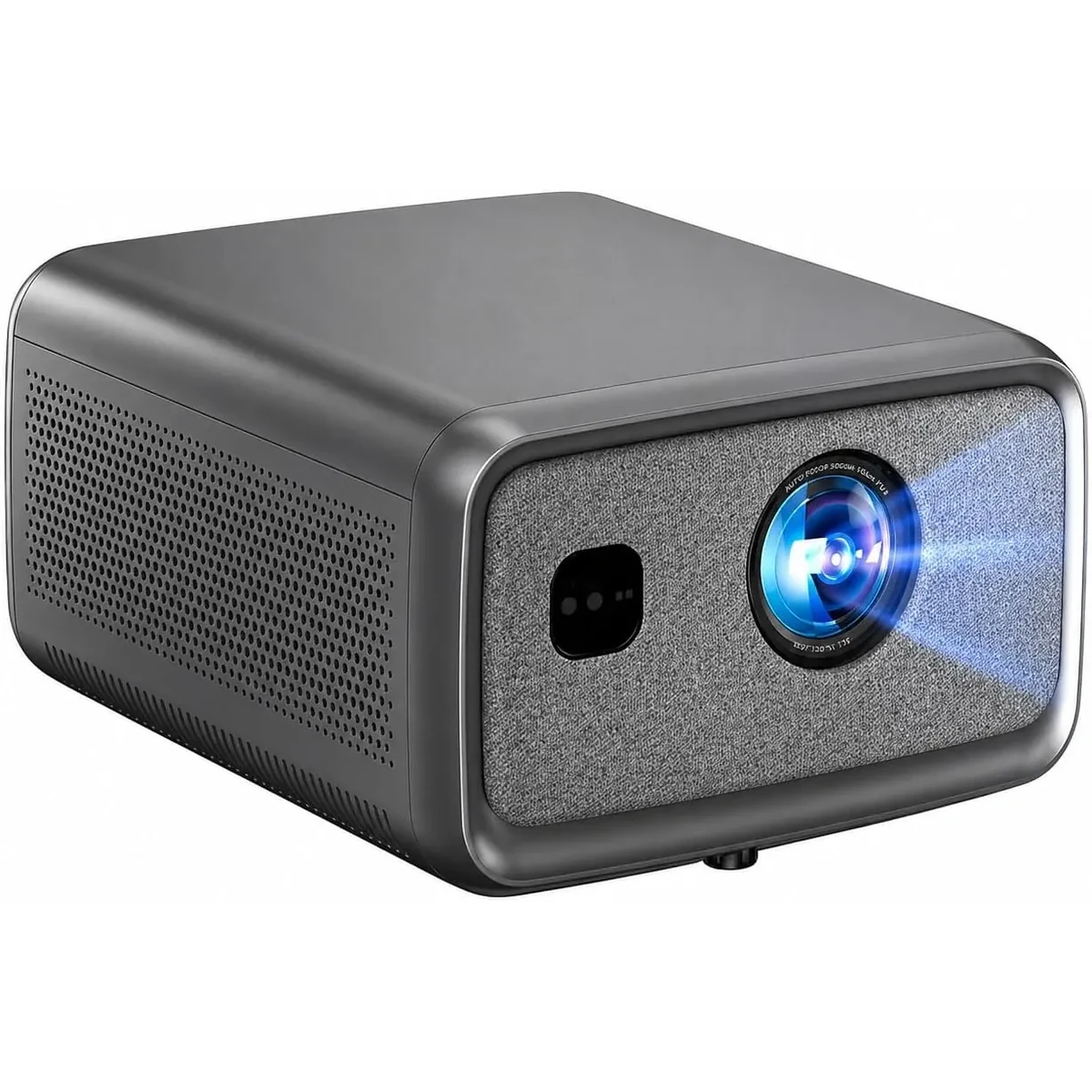
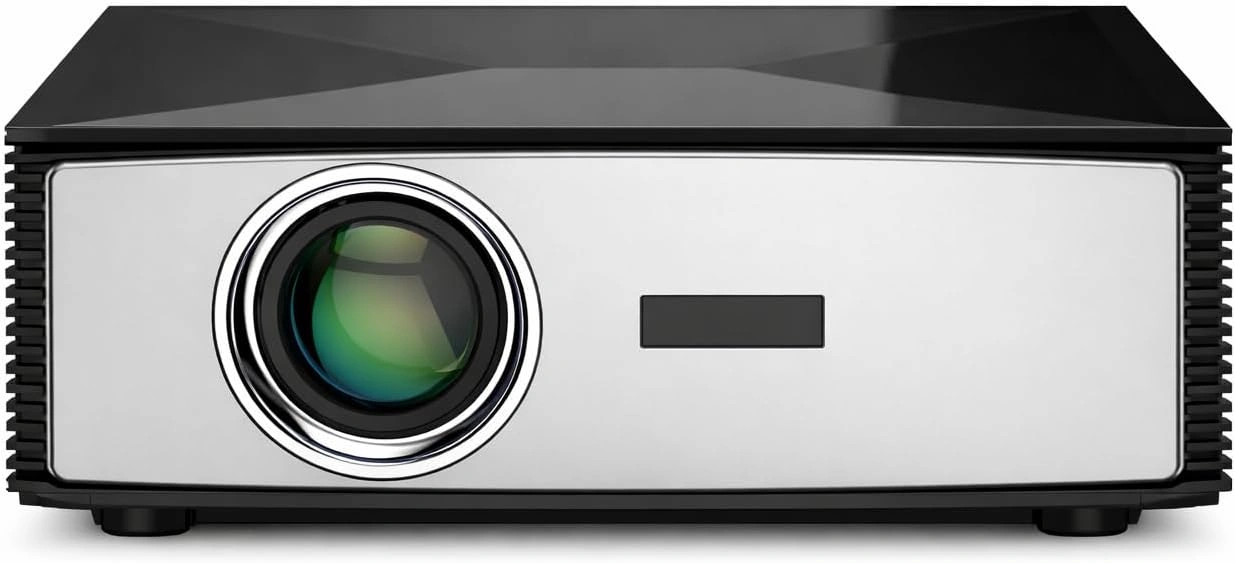
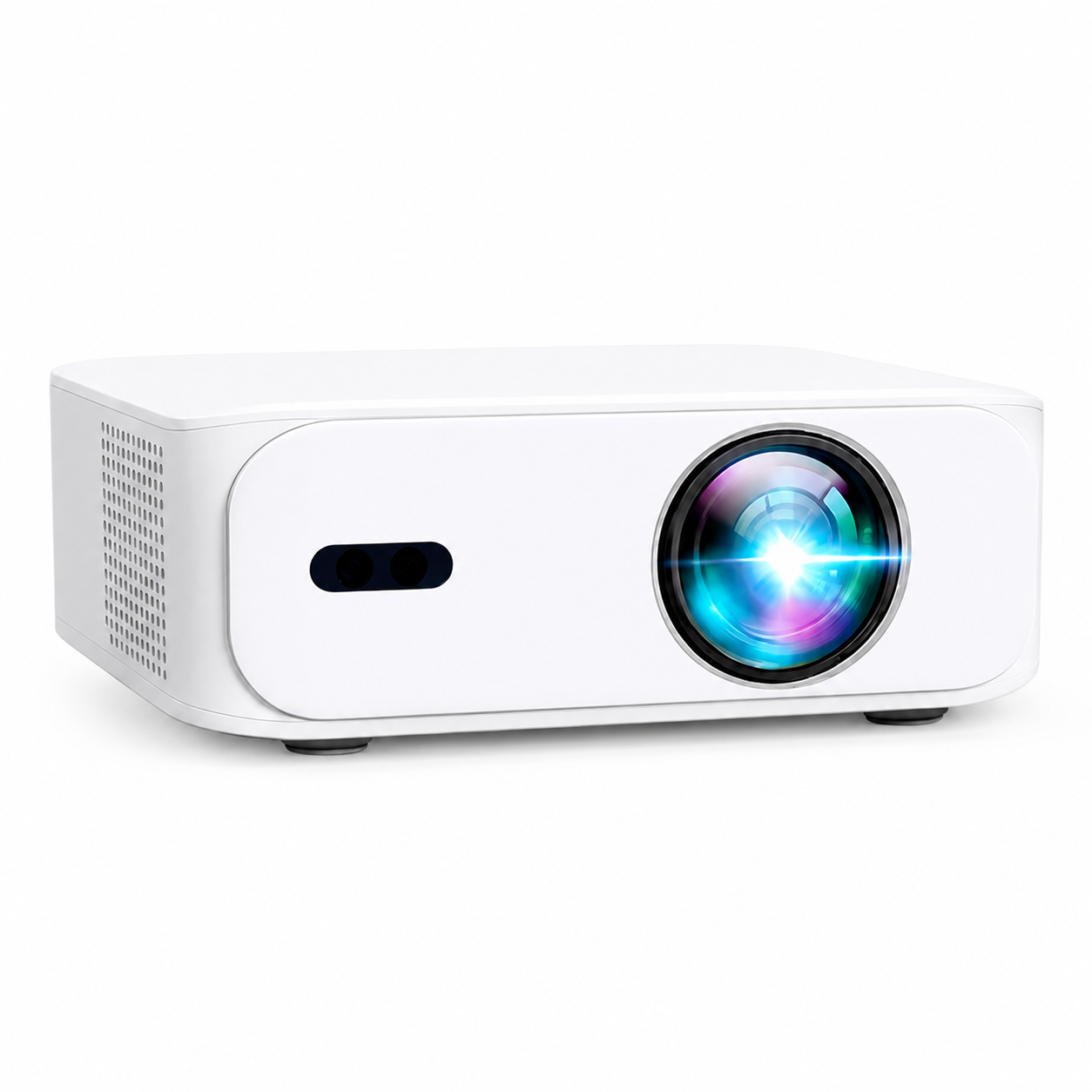
Compare the connections listed for the BOSS Projector S7, A5, S6A and S8A against the player and sound system you already own. This guide does not establish a Dolby, DTS, ARC or eARC capability for any of those models; use their current specifications for the connection you intend to make.
Read the source-connection guide or compare projector specifications. Share your planned audio route when asking for buying advice so picture and sound are considered together.
Common HDMI audio questions
Does a clear picture prove my HDMI cable is fine?
It shows that video is reaching the projector. It does not prove that the source selected the correct audio output or format. Check those first, then compare another supported cable or route if needed.
Is PCM always better than surround sound?
No. Stereo PCM is a useful baseline for a compatible two-channel path. A properly supported surround setup can use its intended format once the full route is configured.
Current models and prices
Explore the current models
Review the key specifications and current prices. Open a model for the full details.