US projector buying guide
Projector Subtitles Cut Off? Fix Screen Fit and Readability
If projector subtitles are cut off, check whether the picture itself is cropped before changing the captions. If the complete frame is visible but the words are hard to read, adjust caption size, contrast and your seated sightline. These are different problems, and separating them makes the fix much quicker.

A film can look impressive while a two-line caption sits just behind the coffee table or disappears against a bright scene. This guide gives you a repeatable check for your actual seat, screen and playback app. It works as a planning exercise for a BOSS projector or as a troubleshooting sequence for a setup you already use.
Start with the exact symptom
| What you see | Check first | Useful comparison |
|---|---|---|
| Words and picture edges are missing | Source zoom, picture fit and overscan, where available | A still image with a visible border on all four sides |
| Complete frame; captions are too small | The app or player’s caption style | The same scene from your normal seat |
| Center is clear; captions near the bottom look soft | Focus, physical alignment and screen flatness | Small text at both the center and bottom |
| Readable standing up, hidden when seated | Furniture and sightline | A photo taken at seated eye height |
| Only one app or title has the problem | Its subtitle track and available controls | A second title on the same device |
1. Restore the complete picture
Pause playback and open a still image with a thin border and a marker in each corner. You can make one in a slide editor. Start with a 16:9 slide for a 16:9 setup, display it full screen and check that every corner remains visible. This is a framing check, not a resolution or brightness measurement.
Check the player’s picture-fit setting and the projector’s documented aspect controls. Options described as zoom or fill can enlarge the picture past its original boundaries. If the device offers overscan, compare its off setting. Change one setting at a time and photograph the original value so you can restore it.
Epson’s aspect-ratio documentation illustrates how normal and zoom modes fit a picture differently. It is an explanation of the principle, not a BOSS Projectors menu guide: control names and available settings depend on your exact model and source.
Keep the film’s proportions. Black bars can be the correct result when a film and screen have different aspect ratios. Enlarging the film solely to remove the bars can also remove picture information or subtitle space. A useful goal is the whole intended image, with comfortable captions, rather than filling every centimeter of the screen.
2. Adjust captions at the device that creates them
Once the frame fits, open the subtitle controls on the app or external player. For example, Netflix documents subtitle appearance settings for size, shadow and background, with availability varying by device. Some changes are made in the profile settings; supported TV devices also offer size and style controls during playback.
Try one size increase and a contrasting background or shadow, then replay both a bright and a dark scene. Keep a two-line caption on screen for the test. A setting that works on a dark opening sequence may be less comfortable during a bright sports broadcast or animation.
Burned-in text is part of the video image and cannot be restyled with ordinary caption controls. If those controls do nothing, try another selectable subtitle track or title before resetting the projector. When you switch from a built-in app to an HDMI player, repeat this check in the player; the two can store different caption preferences.
3. Check the lower screen from the seat you use
Sit as you normally watch, including your usual cushion and reclined position. Ask someone to stand beside the screen while you identify the lowest fully visible part. A low screen can be blocked by furniture even when its image is perfectly aligned. Moving the coffee table for a comparison is more informative than repeatedly changing keystone.
For a shared room, repeat the check from the side seat and the lowest seat. Record three measurements: seated eye height, screen-bottom height and lens-to-screen distance. Add the screen width and a room photo. These details give support something practical to work with when discussing placement.
As an illustration, suppose the lower caption line is behind a table from the sofa but fully visible from a dining chair. That result points toward the sightline. It does not establish a focus fault. Try a temporary furniture adjustment before considering a permanent mounting change, and keep all equipment stable and ventilated.
4. Separate small text from uneven focus
If the captions are complete but soft, compare text in the middle of the image with text at the bottom. Use the projector’s internal menu or a supported test pattern as a second reference. If both areas are soft, establish focus first. If one area remains softer, check that the screen is flat and the projector is facing it squarely within the model’s supported placement range.
Increasing caption size can make reading easier, but it does not correct an unevenly focused image. Keep digital correction modest where practical and use the model’s setup instructions. For a persistent difference, send support pictures of both areas taken from the same position. A phone can introduce its own blur, so include your observation as well as the photographs.
Save a subtitle-friendly setup
- Source: device, app, title and subtitle language.
- Picture: aspect or fit setting and whether all four test markers are visible.
- Captions: size and background or shadow preference.
- Room: viewing distance, screen-bottom height and any furniture obstruction.
- Result: readable from every regular seat in a bright and a dark scene.
Keep this note when changing sources or moving the projector. It gives you a starting point without turning a movie night into another setup session. In the United States, available subtitle tracks can vary by service and title; check the actual program you plan to watch rather than using a different catalogue as the reference.
Build the room around the way you watch
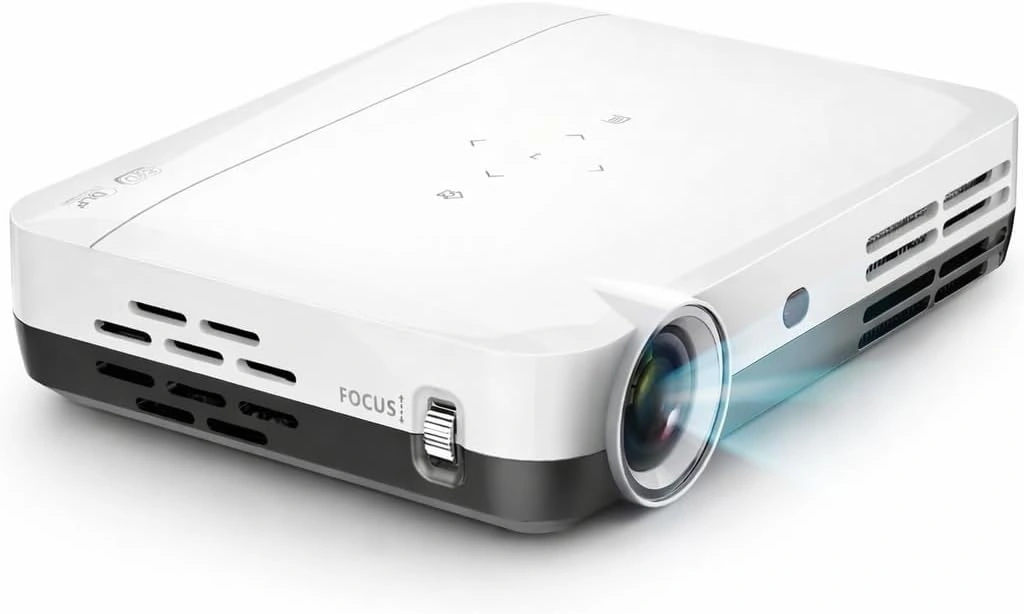
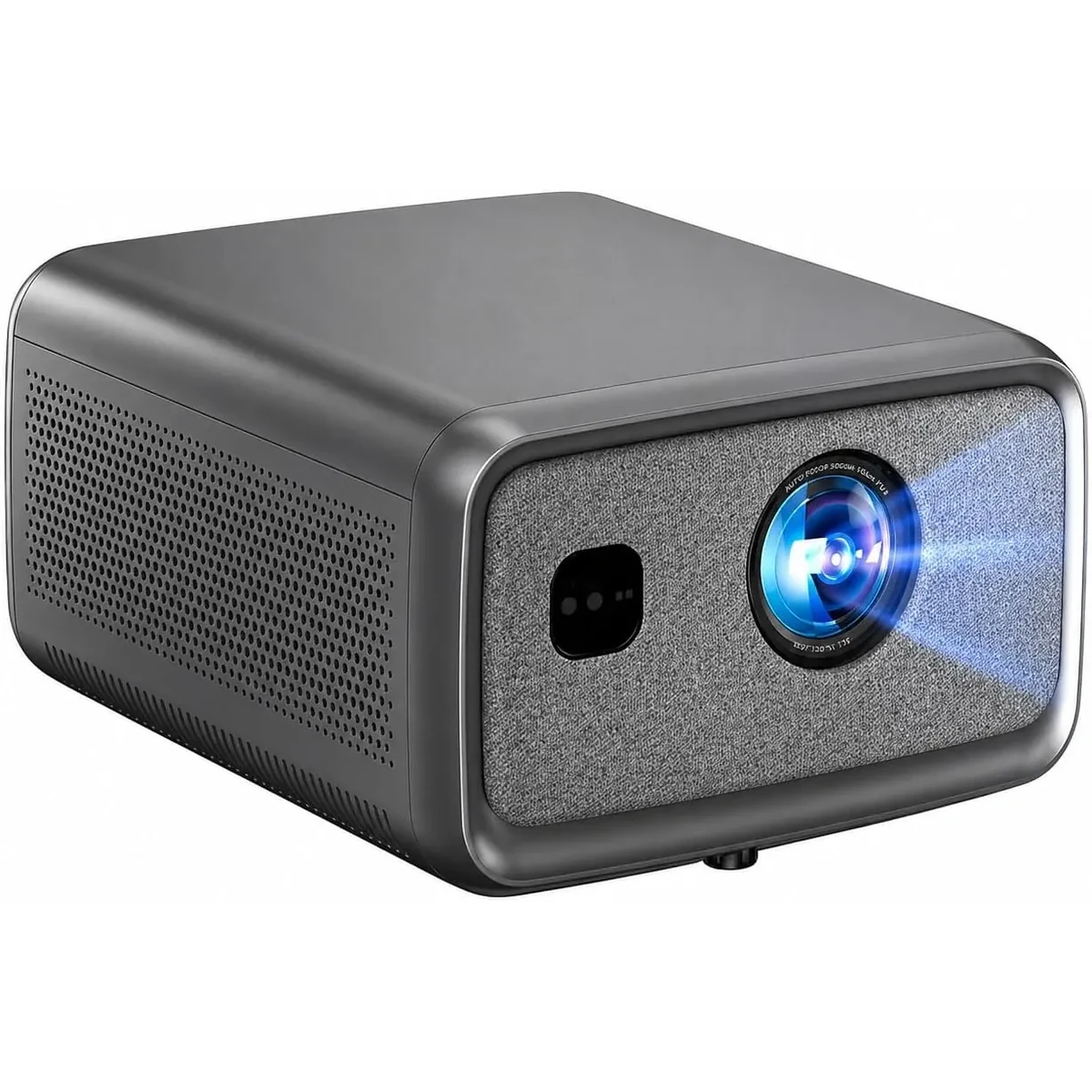
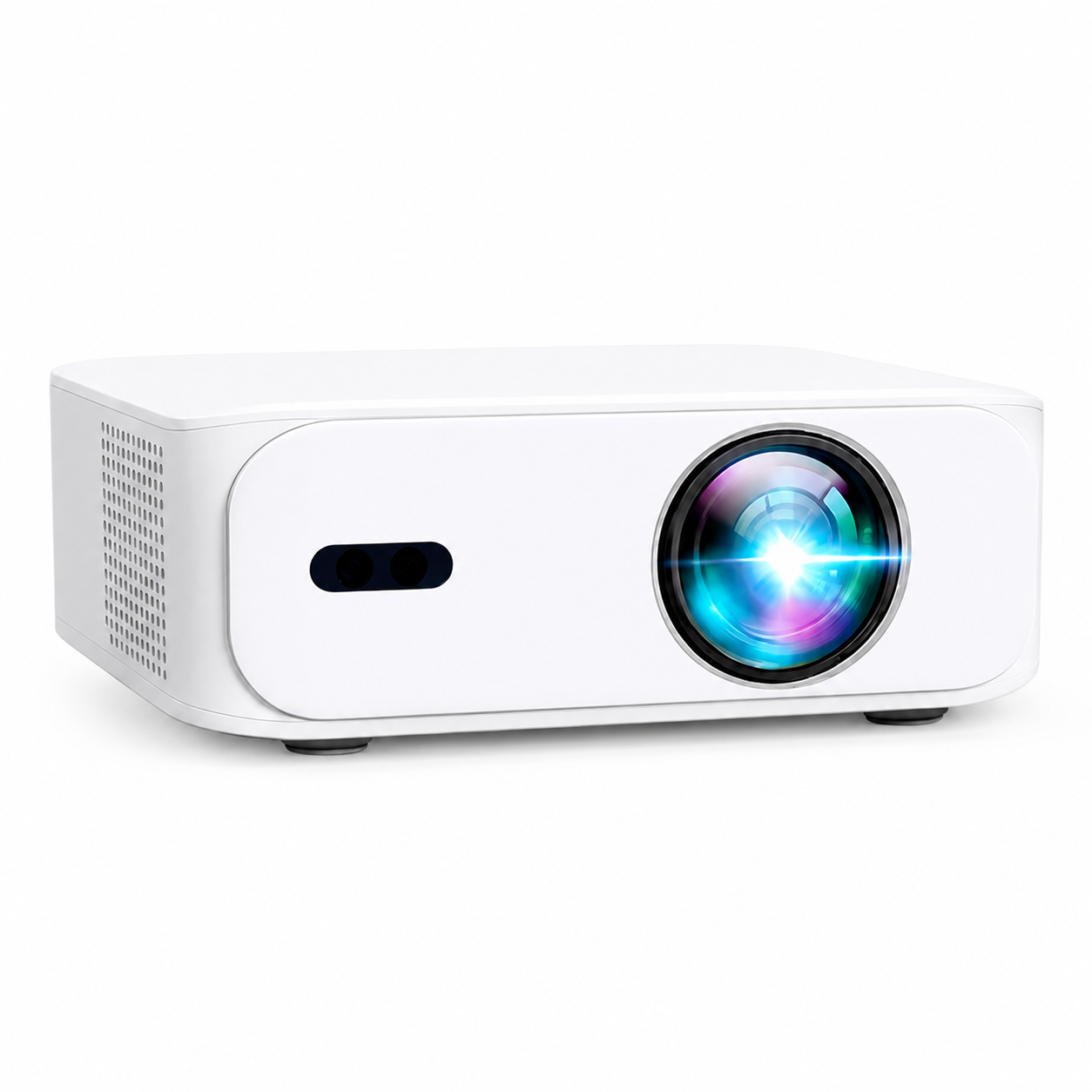
The BOSS Projector A5 is a compact Full HD option to consider for a flexible setup. The BOSS Projector S7 offers 4K UHD output for a dedicated home-cinema shortlist. Subtitle comfort still depends on framing, the playback app and the room, so compare those alongside the model specifications.
Plan your screen and viewing space, compare current models or send your room measurements to our team. Include your source device and preferred subtitle language so the conversation starts with your setup.
Common subtitle questions
Will switching to 4K automatically make captions easier to read?
It may change available image detail, but it will not fix cropped framing, a blocked sightline or an app’s small caption setting. Complete those checks before choosing a different resolution.
Should I move the subtitles into the black bar?
Use the placement options actually offered by the player. Some apps fix caption position. Keep the complete video frame visible and test readability before changing the screen installation.
Current models and prices
Explore the current models
Review the key specifications and current prices. Open a model for the full details.