US projector buying guide
Living Room Projector Setup: A Practical Movie Night Guide
A living room projector setup works best when you rehearse the complete movie night once, then repeat a short checklist. Start with the seats and furniture, establish a stable projector position, play the actual movie from your chosen source, and check dialogue and captions before anyone settles in.

This home theater projector setup guide is for a shared US living room that needs to return to everyday use afterward. It includes a first-night workflow and a suggested 15-minute preflight for later evenings. Initial setup, account sign-in and software updates can take longer. We sell BOSS projectors; the steps below are editorial setup advice, not a report of independent product testing.
1. Arrange the room before connecting equipment
Choose the seats you intend to use, then check the screen area from each one. Include the reclined position on the sofa. A coffee table that seems low while you are standing may hide the bottom of the picture when you sit down. Move furniture temporarily and compare the view before deciding that the screen needs to be higher.
Walk the route between the seats, kitchen and doorway. Leave that route usable without stepping over a power cord or moving through the projection beam. Put drinks on a separate surface. If a freestanding screen is part of the setup, allow room for its complete stand and follow its instructions for support.
Close the curtains and try the lamps you expect to leave on. Keep useful room lighting away from the screen surface. Do this at your normal viewing time: a daytime furniture trial will not show you where an evening lamp reflects or which switch a guest can reach.
Record the screen width, screen-bottom height and available lens-to-screen distance in inches. For detailed dimensions and placement calculations, use our screen-size and projector-distance guide. Its example throw ratios are illustrative; confirm the required distance for the exact model before selecting a permanent position.
2. Find a projector position you can repeat
Use a stable surface with the ventilation and cable clearance required by the projector instructions. Leave the controls and connectors reachable. Avoid balancing the unit on improvised stacks to gain height. A location that works only when nobody touches the table will be frustrating in a shared room.
Face the projector squarely toward the screen and establish the image size before fine adjustment. Open a menu or a still image with clear edges and small text. Check the center and corners, then check the lower part where subtitles will appear. Correct physical placement where practical before relying on digital geometry controls.
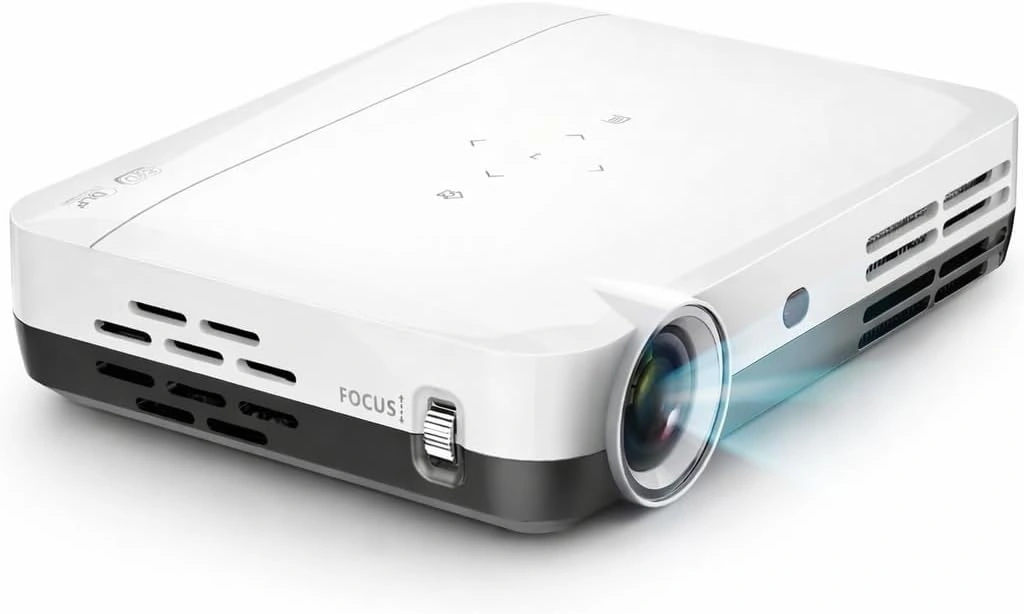
The BOSS S7 product specifications list 3840 × 2160 4K UHD output using DLP/LED technology, HDMI connectivity and remote digital focus. The S7 does not have autofocus: use the remote focus control during setup. These output specifications do not establish a native imaging-chip resolution or guarantee the result in every room.
Once the picture fits, save a room photo showing the table and screen positions. Note the distance from a fixed reference, such as the table edge to the wall. If you use removable markers, choose something appropriate for the surface. Keep the layout reproducible without putting a label over a vent or using the projector body as a measuring stop.
3. Prepare the HDMI player before movie night
A compatible external HDMI streaming player can be a practical way to use a service supported on that player. Check the service's current support for the exact device and your US account. A projector accepting HDMI does not establish certification for every streaming app or make every title available in 4K.
- Connect the source. Follow both devices' instructions, connect the player to HDMI and select the corresponding projector input.
- Power it correctly. Use the player's specified power arrangement. Do not assume a projector USB port supplies the power that a particular streamer requires.
- Finish administration early. Connect to your home network, install required updates, sign in and confirm that your subscription includes the intended title.
- Play the actual content. Open the movie on the same app, profile and player you will use that evening. Let a scene play; a working home menu is not a complete playback check.
- Save the working configuration. Record the selected HDMI input and the source's working video setting. Use formats supported by the complete equipment path.
If you already own a receiver or HDMI switch, begin with the route you plan to use. If that route fails, compare a supported direct connection to isolate the extra equipment. Apple's no-sound guidance uses this direct-connection comparison for Apple TV setups involving a receiver or switch. Follow the instructions for your own devices when changing connections.
Keep passwords out of the setup note. Include a fallback you have actually checked, such as a second supported title or source. Do not assume a mobile download will play through an HDMI connection; download and external-display permissions depend on the service and device.
4. Check dialogue before choosing the final volume
Write one line describing the sound route: player to projector speakers, or player to a compatible receiver and its speakers. If using a soundbar, identify the connection that carries audio to it. HDMI input alone does not establish ARC or eARC support; verify the exact port capabilities before planning an audio-return connection.
Play a scene with ordinary conversation at a comfortable volume. Sit in the least favorable seat as well as the main one. Confirm that the sound comes from the intended device, with no headset or other previously paired speaker taking the output. Compare speech with visible mouth movement before inviting everyone to sit down.
For a compatible two-channel setup, stereo output can provide a useful starting point. Apple documents that Apple TV's Stereo setting sends two-channel PCM; its surround options depend on the connected equipment. This is a player example, not a claim that the S7 supports a particular surround format.
Set a comfortable late-evening level and note it as a starting point, since different programs can sound different. If voices are absent or the external speakers stay silent, use our HDMI sound and missing-dialogue checklist. Repeatedly raising volume makes diagnosis harder when the real issue is the selected output or audio format.
5. Rehearse captions from the actual seats
Enable the caption language you intend to use and pause on two lines of dialogue. Check readability from the sofa and side chair. Make sure furniture does not hide the lower line and that the complete image remains visible. Check a bright scene as well as a dark one.
Adjust captions in the app or player that creates them. Netflix documents subtitle size, shadow and background controls, with available options varying by device and language. A change on a phone may not apply to playback on an external streamer, so inspect the result on the actual movie-night source.
If the whole frame fits but the text is uncomfortable, try the available caption-size or style options. If picture edges and captions are both missing, investigate image fit first. Our subtitle framing and readability guide separates those symptoms so you can make one useful change at a time.
Your living room projector setup: a 15-minute preflight
Use this suggested schedule after the first full rehearsal. It is a planning allowance, not a measured startup time or a promise that updates and network problems can be resolved in 15 minutes.
| Time | Action | Ready when |
|---|---|---|
| Minutes 0–3 | Restore the screen, seats and projector positions. Check the walking route and cables. | The setup matches the saved photo and equipment is stable. |
| Minutes 3–6 | Start the equipment, select the saved input, and check focus and image edges. | The full frame fits and menu text is readable. |
| Minutes 6–10 | Open the intended app, profile and movie. Play a short scene. | Actual playback works beyond the home menu. |
| Minutes 10–13 | Check dialogue, lip sync and captions from the regular seats. | Everyone can hear speech and read the selected captions. |
| Minutes 13–15 | Set the lamps, place the remotes and pause at the start. | Essential controls are reachable and the route out stays clear. |
Keep a small card with the projector input, source name, speaker route and caption preference. This lets another household member start the evening without reconstructing your setup. Rehearse again after replacing a player, changing the sound system or moving the screen.
When something changes: choose one next check
| What happens | Next check | What to record |
|---|---|---|
| Projector menu appears; player does not | Confirm source power, selected HDMI input and connection seating. | Input label and whether another supported source appears. |
| Player menu works; movie fails | Try another title in the same app, then another supported app. | Title, app, error message and whether the problem follows one service. |
| Picture works; speech is missing | Check audio destination and a supported stereo configuration. | Working and failing routes, plus selected audio format. |
| Picture looks soft after moving equipment | Restore the saved position, check screen flatness and adjust focus. | Whether softness affects the center, edges or both. |
| Captions disappear behind furniture | Compare the sightline with the obstruction moved. | Which seat is affected and whether the full image is visible. |
Change one thing, replay the same scene and note the result. If you need US Projector support, include the projector and source models, connection route and a photo of the displayed error. Never include account passwords or payment details.
Put the living room back without losing the setup
Stop playback and follow the projector's shutdown and cooling instructions before moving or enclosing it. Disconnect cables by their connectors and store them without tight bends or pressure on the plugs. Keep the remote, specified power supply and source accessories together so tomorrow's setup does not begin with a search.
Store the screen according to its instructions and keep equipment dry and protected. Save any successful setting change in the room note before restoring the furniture. Retain original packaging and accessories; the US returns and warranty policy explains their role in an eligible return.
Still selecting equipment? Review the current BOSS S7 specifications against your room measurements and HDMI source. For a planned event, check the US shipping policy and allow time for your own rehearsal after delivery. A delivery estimate is not a guarantee that a new setup will be ready for a particular evening.
Living-room projector questions
Can I set up a new projector in 15 minutes?
The checklist is for a setup you have already rehearsed. First-time positioning, account access, updates and connection troubleshooting need a separate session before the planned movie.
Do I need a ceiling mount for occasional movie nights?
A suitable stable surface can work when the projector's placement and ventilation requirements are met. Test the complete room arrangement before deciding on permanent mounting.
Should I buy a streaming player before trying the projector?
Start with the equipment you own and verify that it supports your preferred service. Buy additional hardware only after identifying the compatibility or convenience requirement it needs to solve.
Does 4K output mean every movie plays in 4K?
No. The title, subscription, playback device and complete connection path must support the intended format. The projector's output specification alone does not establish streaming resolution.
Compare home theater projectors using your room measurements, preferred source and complete setup budget.
Current models and prices
Explore the current models
Review the key specifications and current prices. Open a model for the full details.